Full disclosure: we make PointerStick, one of the tools below. We've tried to be fair: several free tools here are excellent, and for some jobs they're the better pick.
What to look for
- Pointer visibility: can viewers find the cursor at a glance, including on projectors and compressed video?
- Click feedback: does a click produce something visible (and optionally audible)?
- Works everywhere: in all apps and on all monitors, or only inside one program?
- Quick toggle: a hotkey to turn it on and off without digging through settings.
- Stays out of the way: clicks pass through and performance is unaffected.
1. Windows built-in pointer settings
Best for: everyday visibility. Price: free.
Bigger, custom-colored pointers and “press Ctrl to show the pointer” are built into Windows. They're the first thing to try if you just lose your cursor on a large monitor. They don't show clicks. Step-by-step instructions are here.
2. PowerToys Mouse Highlighter
Best for: free click highlighting in recordings. Price: free (Microsoft).
Part of Microsoft PowerToys. Toggle it with a shortcut and every click shows a colored circle. It's simple, reliable and configurable. The pointer itself stays the normal arrow, so on a projector it's still small, and there's no click sound. PowerToys also includes Find My Mouse and Mouse Pointer Crosshairs.
3. ZoomIt
Best for: zooming in and drawing on screen during talks. Price: free (Microsoft Sysinternals).
ZoomIt is a presenter's classic: zoom into part of the screen, draw arrows and boxes, type annotations and show a break timer, all from hotkeys. It isn't a cursor highlighter in the strict sense, but zoom plus annotation covers a lot of the same need. We compare it in detail in PointerStick vs ZoomIt.
4. Your screen recorder's cursor effects
Best for: polished, edited tutorials. Price: varies.
Several recording and editing tools can add cursor highlights, magnification and click animations, sometimes after the fact so you can tweak them per clip. Great for edited videos, but limited to that tool and not available during live calls.
5. PointerStick
Best for: live presentations, demos, teaching and streams where you want the pointer to be unmissable (and a bit fun). Price: free; Premium is $12.99 once.
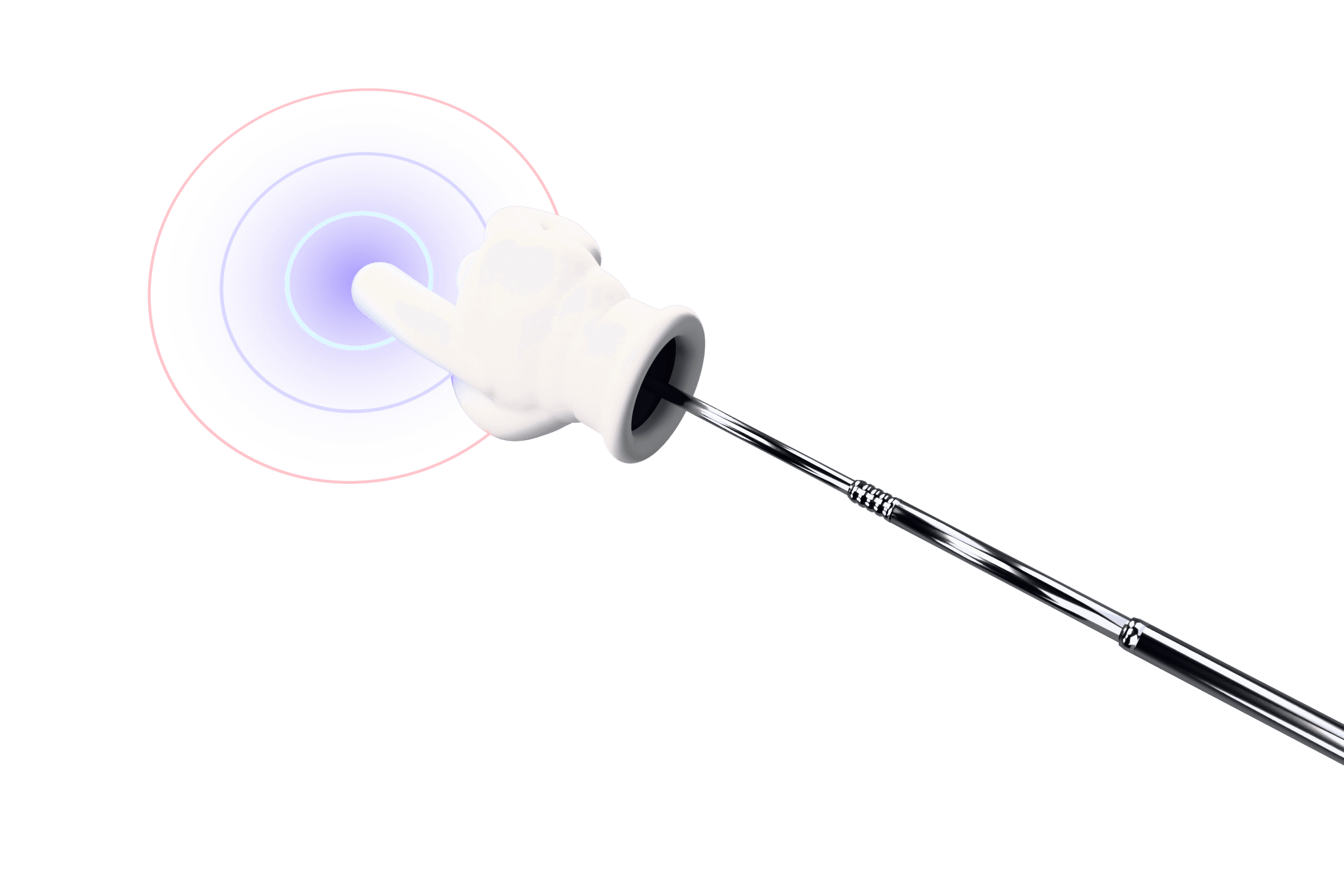
PointerStick replaces your cursor with a 3D cartoon glove on a telescoping stick while it's on. Clicks make the hand tap the screen with a sound and an impact effect. It works across all apps and monitors and toggles with one hotkey. The style is deliberately playful. If you need something invisible-until-needed for formal settings, the free options above may suit you better. Try the live demo on our homepage.
Quick picks
| If you want… | Use |
|---|---|
| To stop losing your cursor day to day | Windows pointer size & color |
| Free click circles in recordings | PowerToys Mouse Highlighter |
| To zoom and draw during a talk | ZoomIt |
| Effects you can tweak in post | Your video editor |
| A big, fun pointer with visible, audible taps, live, everywhere | PointerStick |
These tools combine well. Plenty of presenters run ZoomIt for zoom and drawing alongside a pointer tool for pointing, since their default hotkeys don't overlap.