The problem with recording a normal cursor
A tutorial is a sequence of clicks. Video compression, small embeds, phone screens and 2× playback speeds all conspire to make a 20-pixel arrow hard to follow, and a click itself leaves no trace at all. Viewers see a menu open but not what opened it.
What PointerStick adds to your recordings
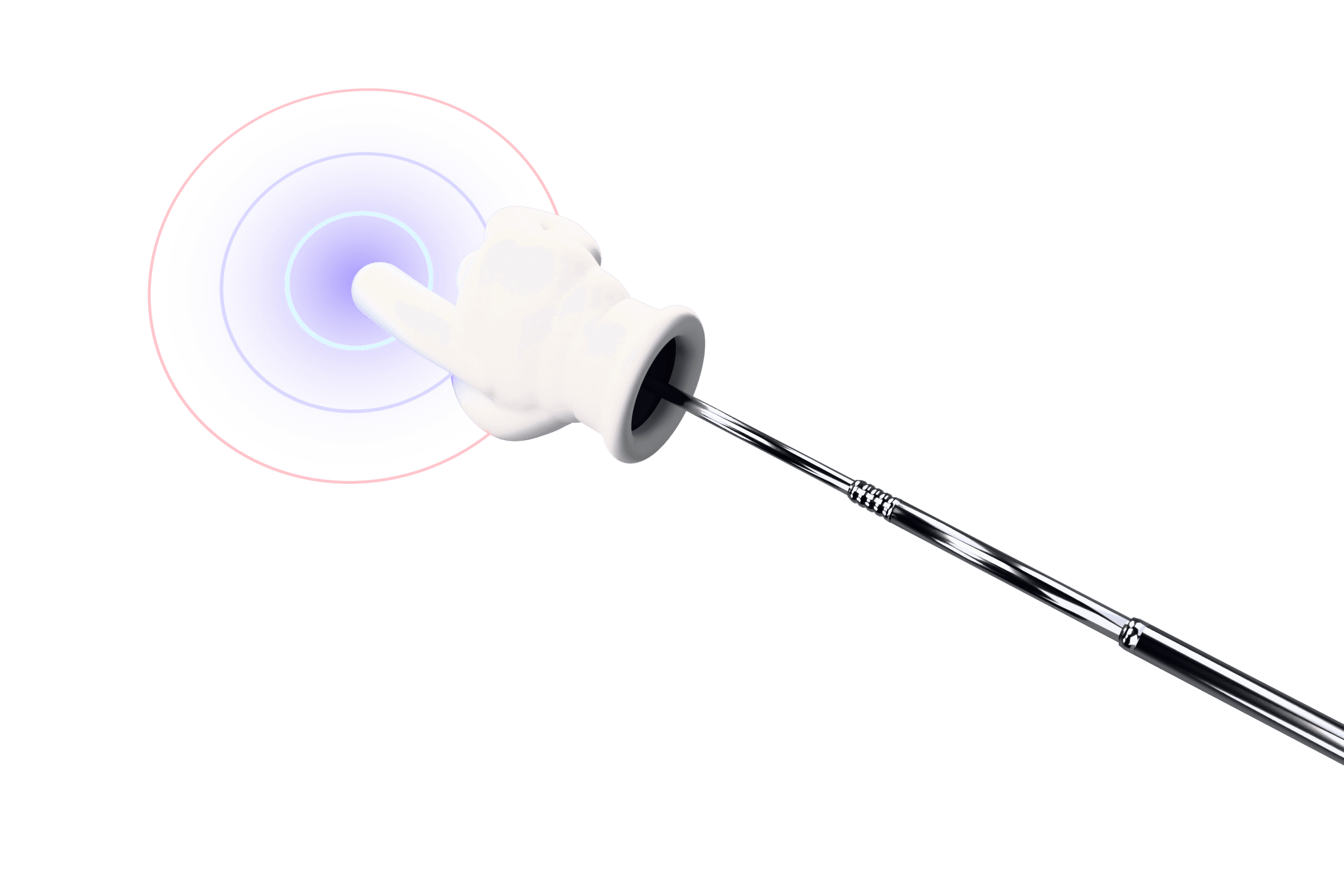
- A pointer that survives compression. The hand-on-a-stick is large and high contrast, so it reads clearly even in a 480p embed.
- Visible clicks. Every click pushes the hand into the screen and spawns an impact effect (a subtle ripple by default). Your viewers see the click happen, not just its result.
- Audible clicks. A short tap sound plays on each click. If your recorder captures system audio, the clicks are in the recording too, which is a great cue for people listening while they follow along.
- No editing needed. Because the effect is live on screen, there's no post-production step to add cursor highlights. Record, trim, publish.
Record with PointerStick itself
With Premium, you don't need a separate recorder. Press Ctrl + Alt + R, pick the monitor or drag a region, and record with system audio and, if you like, your microphone. The pointer and its effects are included, and when you stop, a simple editor lets you trim the ends and cut out mistakes before exporting an MP4. More in screen recording with a highlighted cursor.
Recording setup tips (other recorders)
- Capture the display, not a window. In OBS use a Display Capture source; in other recorders, choose full screen or a screen region. Window-only capture excludes overlays like PointerStick.
- Disable the recorder's own cursor capture if it draws a second cursor. PointerStick hides the system cursor while it's on, so usually there's nothing to remove.
- Record system audio if you want the click sounds, or mute them in the Locker if you prefer to add music or voice-over only.
- Turn trails off for precise work. Trails like Comet Glow look great in intros but can distract during detailed step-by-steps.
- Slow down a little. A visible pointer encourages you to point before you click, which is exactly the rhythm good tutorials have.
Live effects vs. adding highlights in an editor
Some video editors can add cursor highlights or click animations after recording. That works, but it adds a step to every video, and the effects only exist in the edited file. PointerStick works in real time, so the same setup covers recordings, live demos and calls. If you already edit in a tool with cursor effects, you can still use PointerStick for the moments you're live.
Make it yours
Channels with a recognizable style get remembered. Pick a glove color that matches your brand, a sound that fits your tone, and stick with it. Browse the styles; you can try every style live in your browser before buying.
More ways to make a cursor visible on Windows, including free built-in options, are in our guide: how to highlight your cursor on Windows.